Secure connections
Save PostgreSQL connection details with encrypted passwords, SSL settings, URL import, testing, search, edit, and delete actions.
PostgreSQL GUI for AWS RDS
Connecting a client to RDS is rarely a client problem. The endpoint is standard PostgreSQL and every GUI supports it - what blocks you is the VPC, the security group, and whether the instance is reachable from outside AWS at all.
Short answer: Take the endpoint and port from the RDS console, then check two things before blaming the client: the security group must allow inbound TCP 5432 from your IP, and the instance must either be publicly accessible or reached through an SSH tunnel via a bastion host. If the connection hangs rather than refusing, it is almost always the security group.
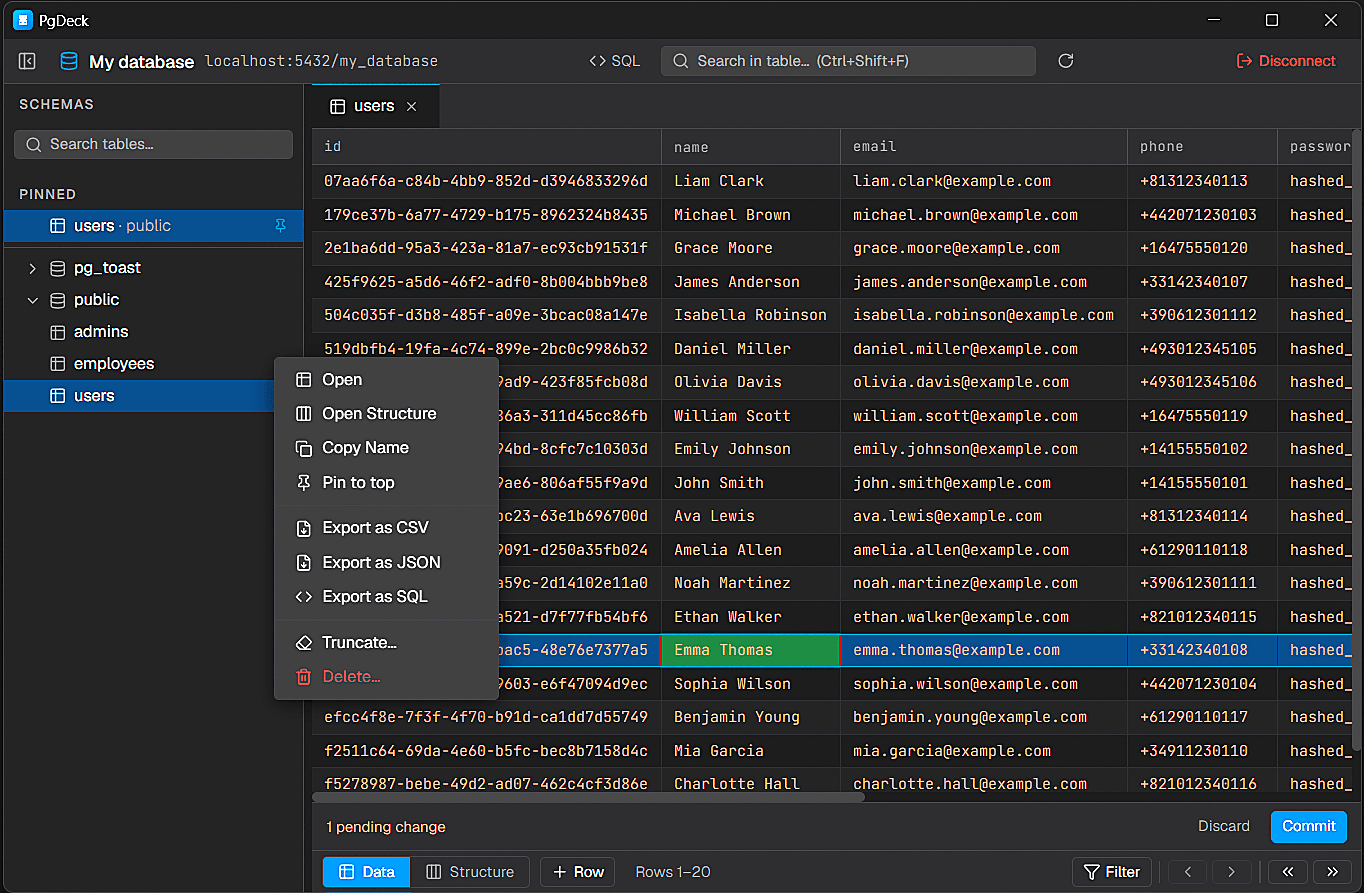
PgDeck is shaped around PostgreSQL tasks that happen every day: connect, inspect, filter, edit, query, manage structure, copy, and export.
Save PostgreSQL connection details with encrypted passwords, SSL settings, URL import, testing, search, edit, and delete actions.
Browse schemas and tables, search the table list, pin favorites, filter rows, sort columns, resize columns, and paginate results.
Run SELECT and non-SELECT statements from multi-tab SQL editors with syntax highlighting and interactive query results.
Edit cells, add rows, duplicate rows, set NULL, stage deletes, review pending changes, and commit everything in one transaction.
In the RDS console open your database and read the Connectivity and security tab. The endpoint looks like mydb.abc123xyz.eu-west-1.rds.amazonaws.com and the port is usually 5432. The master username is on the Configuration tab; the password was set at creation and can be reset there if it was not saved.
Check Public accessibility on the same tab. If it is No - the correct setting for production - the instance has no public IP and no amount of security group editing will let you connect directly. You reach it through an SSH tunnel via a bastion host or any EC2 instance in the same VPC. If it is Yes, you can connect directly once the security group allows it.
Find the VPC security group attached to the instance and add an inbound rule: type PostgreSQL, protocol TCP, port 5432, source your current IP address. Use My IP rather than 0.0.0.0/0 - exposing a database port to the whole internet is how RDS instances get found and attacked. Home connections change IP, so this rule needs updating periodically.
For a publicly accessible instance, create the connection with the endpoint, port, database name, master username, and password. For a private instance, configure the SSH tunnel first - bastion host, SSH user, and your private key - and point the database host at the RDS endpoint as resolved from inside the VPC. PgDeck includes SSH tunnel support in the Pro plan.
postgres://masteruser:PASSWORD@mydb.abc123xyz.eu-west-1.rds.amazonaws.com:5432/postgres?sslmode=requireRDS supports TLS and many instances enforce it through the rds.force_ssl parameter. sslmode=require encrypts the connection and is the practical minimum. For verify-full, which also checks the server identity, download the Amazon RDS regional CA bundle and point the client at it - this is the setting that actually protects against a man-in-the-middle, and require alone does not.
The failure mode tells you where to look. A connection that hangs and eventually times out is a packet being dropped, which is the security group or a network ACL. A connection actively refused means you reached a host but nothing is listening on that port - usually the wrong port or the wrong endpoint. An authentication error means the network is fine and the problem is now a simple one. Read the error before changing settings.
Production RDS instances should not be publicly accessible, which means your laptop cannot route to them at all. The standard answer is an SSH tunnel: connect to a bastion host or an EC2 instance inside the VPC, and forward a local port to the RDS endpoint through it. Your client then connects to localhost and the traffic emerges inside the VPC. A client with built-in SSH tunnel support does this for you rather than requiring a separate ssh -L command left running in a terminal.
RDS supports IAM database authentication, where you generate a short-lived token instead of using a password. It works with standard clients because the token is passed in the password field, but it expires after fifteen minutes, so a saved connection stops working and must be regenerated. Most desktop clients, PgDeck included, have no built-in token refresh, so password authentication remains the practical choice for interactive work.
The quickest way to get connected is a rule allowing 0.0.0.0/0 on port 5432, and it is the reason exposed Postgres instances are a standing category of breach. Scanners find them within hours. Use My IP, use a bastion where you can, and remove temporary rules when you are done. If your IP changes often, a tunnel is less work than re-editing the rule.
More on choosing, comparing, and running a PostgreSQL desktop client.
Take the endpoint and port from the RDS console's Connectivity and security tab, add an inbound rule to the instance's security group allowing TCP 5432 from your IP, then connect with the master username and password. If the instance is not publicly accessible, connect through an SSH tunnel via a bastion host instead.
Almost always the security group. A timeout means packets are being dropped, so check that an inbound rule allows TCP 5432 from your current IP address. If Public accessibility is set to No, the instance has no public route at all and you need an SSH tunnel rather than a firewall change.
Yes, through an SSH tunnel. Connect to a bastion host or EC2 instance inside the same VPC and forward traffic to the RDS endpoint through it. PgDeck includes SSH tunnel support in the Pro plan, so no separate ssh -L command is needed.
It supports TLS always, and enforces it when the rds.force_ssl parameter is enabled. Use sslmode=require as a minimum. For verify-full, download the Amazon RDS regional CA bundle and point your client at it - only verify-full actually validates the server's identity.
No. Database ports exposed to the whole internet are found by automated scanners within hours. Restrict the inbound rule to your own IP, or keep the instance private and reach it through a bastion host.