Secure connections
Save PostgreSQL connection details with encrypted passwords, SSL settings, URL import, testing, search, edit, and delete actions.
PostgreSQL GUI for Docker
A Postgres container is an ordinary PostgreSQL server that happens to live behind a port mapping. Connecting to it is straightforward once you know which host to point at - and getting that wrong is the single most common reason this does not work first time.
Short answer: If your GUI runs on the host machine and the container published its port, connect to localhost on the mapped port with the credentials from POSTGRES_USER and POSTGRES_PASSWORD. The classic failure is a container started without -p, which makes Postgres unreachable from outside Docker no matter what the client does.
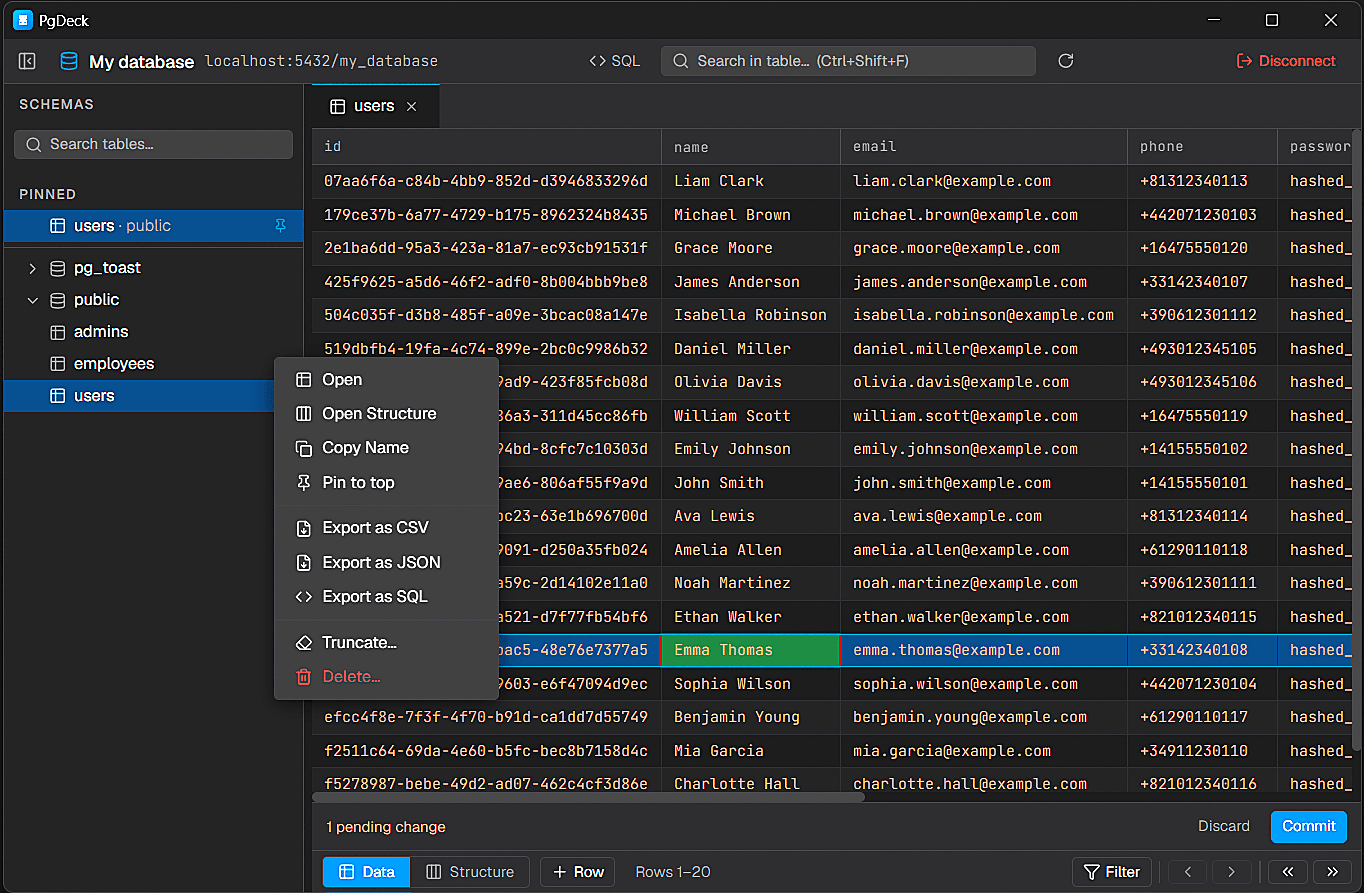
PgDeck is shaped around PostgreSQL tasks that happen every day: connect, inspect, filter, edit, query, manage structure, copy, and export.
Save PostgreSQL connection details with encrypted passwords, SSL settings, URL import, testing, search, edit, and delete actions.
Browse schemas and tables, search the table list, pin favorites, filter rows, sort columns, resize columns, and paginate results.
Run SELECT and non-SELECT statements from multi-tab SQL editors with syntax highlighting and interactive query results.
Edit cells, add rows, duplicate rows, set NULL, stage deletes, review pending changes, and commit everything in one transaction.
The container must map its port onto the host, otherwise nothing outside Docker can reach it. The left number is the host port and the right one is the container port - use 5433:5432 if you already have PostgreSQL installed locally on 5432, which is a very common collision.
docker run --name pg -e POSTGRES_PASSWORD=secret -p 5432:5432 -d postgres:17

# If host port 5432 is already taken:
docker run --name pg -e POSTGRES_PASSWORD=secret -p 5433:5432 -d postgres:17Run docker ps and read the PORTS column. You want to see something like 0.0.0.0:5432->5432/tcp. If it shows only 5432/tcp with no arrow, the port was never published - stop the container and start it again with -p, because you cannot add a mapping to a running container.
docker psPOSTGRES_PASSWORD is the password, POSTGRES_USER is the username and defaults to postgres, and POSTGRES_DB is the database name and defaults to the username. These environment variables only take effect when the data directory is first initialised - changing them later on a container with an existing volume does nothing, which is why a corrected password often fails to help.
If the GUI runs on your machine, the host is localhost and the port is the host side of the mapping. If the GUI itself runs inside a container, localhost means that container - use host.docker.internal on Docker Desktop, or the Compose service name when both containers share a network.
postgres://postgres:secret@localhost:5432/postgresContainers on the same Compose network resolve each other by service name, so an app container connects to db:5432 regardless of any ports mapping. That ports line exists only for tools outside Docker - your GUI on the host still connects to localhost on the published port.
services:
  db:
    image: postgres:17
    environment:
      POSTGRES_PASSWORD: secret
    ports:
- "5432:5432" # host:container, only needed from outside DockerThe port was never published, so docker ps shows no arrow in the PORTS column. The host port collides with a local PostgreSQL install, so you are connecting to the wrong server entirely and the credentials look wrong. The GUI runs inside a container and localhost points at itself. Or the password was changed after the volume was initialised, so the environment variable is being ignored. Check them in that order.
If PostgreSQL is installed on your machine and a container maps 5432:5432, one of them loses. Often the client connects successfully to the local server, finds none of your tables, and the conclusion drawn is that Docker is broken. Map the container to 5433 instead and the ambiguity disappears - two servers, two ports, no confusion about which one you are looking at.
Removing a container does not remove its named volume, which is why a recreated container can still have the old password and the old tables. It also means docker compose down -v is a genuinely destructive command: the -v flag deletes the volume and the database with it. If a dev database is worth keeping, take a backup before running it.
Local containers are where you can safely explore what a client does: run the destructive UPDATE, check what staged edits show you before commit, test a structure change and see the generated SQL. Recreating the container resets everything. It is a far better place to build that confidence than a staging database someone else is using.
More on choosing, comparing, and running a PostgreSQL desktop client.
Start the container with a published port, for example -p 5432:5432, then connect the client to localhost on that host port using the POSTGRES_USER and POSTGRES_PASSWORD values the container was created with. Confirm the mapping with docker ps before troubleshooting anything else.
Usually the port was never published - docker ps shows 5432/tcp with no arrow. Other common causes are a host port collision with a locally installed PostgreSQL, a client running inside another container where localhost is not the host, and a password changed after the data volume was already initialised.
Not localhost, which refers to that container itself. On Docker Desktop use host.docker.internal to reach the host machine. If both containers are on the same Docker Compose network, use the database's service name - for example db:5432.
Only for access from outside Docker, such as a GUI on your host machine. Containers on the same Compose network reach each other by service name regardless of any port mapping.
Those environment variables are applied only when the data directory is first initialised. If a volume already exists, the container reuses the existing credentials. Either change the password with ALTER USER, or remove the volume and let the container initialise again - which deletes the data.