Secure connections
Save PostgreSQL connection details with encrypted passwords, SSL settings, URL import, testing, search, edit, and delete actions.
PostgreSQL query tool
Most people searching for a PostgreSQL query tool mean one of two things: how to use pgAdmin's Query Tool, or what to use instead of it. This page covers both, because they are the same question asked from different ends.
Short answer: pgAdmin's Query Tool is the built-in answer: open it with a database selected, write SQL, and press F5 to run. psql is faster for scripting and remote work. If the browser interface is what you want to escape, any native desktop client gives you the same SQL execution with less overhead between typing and results.
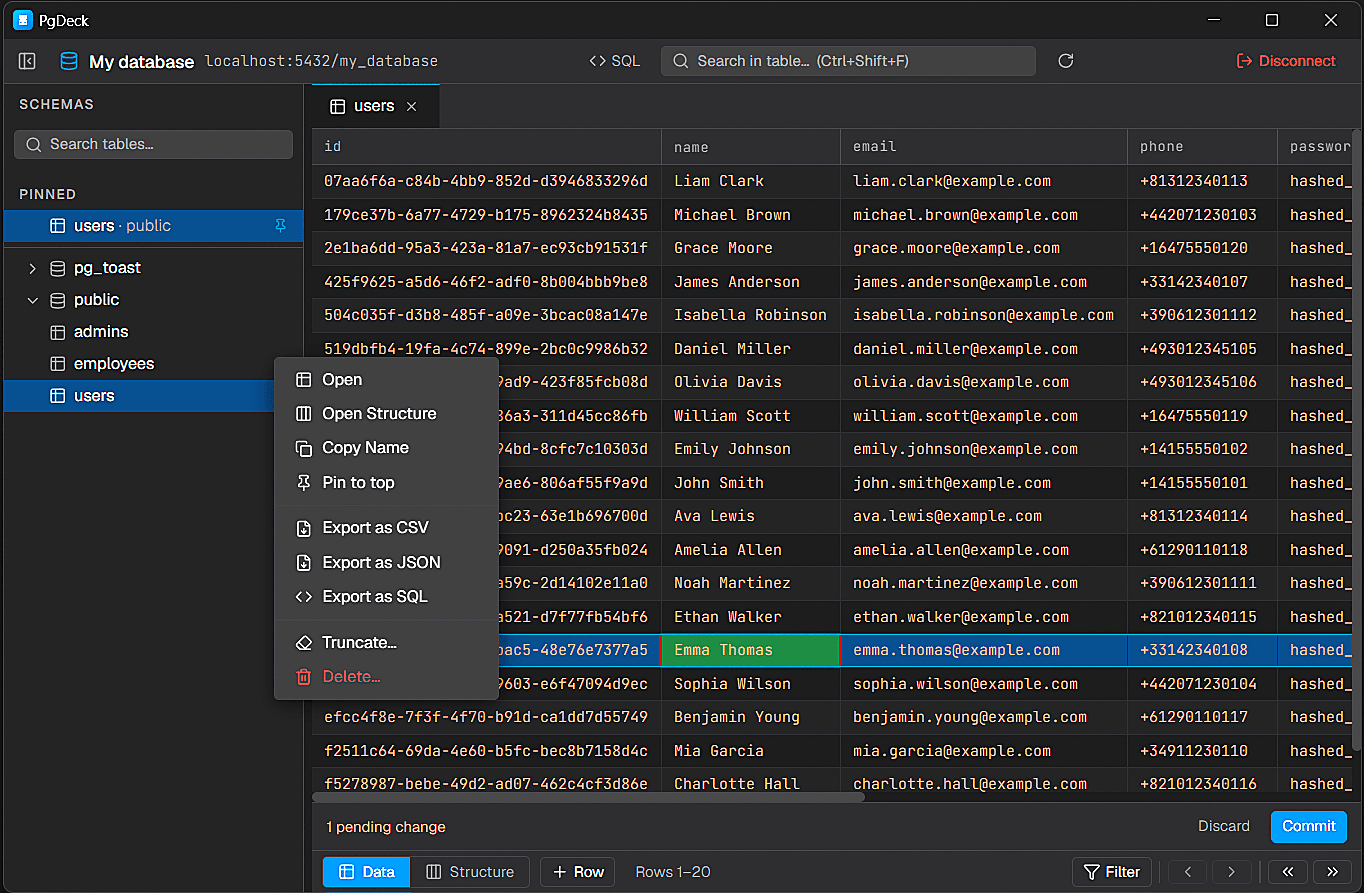
PgDeck is shaped around PostgreSQL tasks that happen every day: connect, inspect, filter, edit, query, manage structure, copy, and export.
Save PostgreSQL connection details with encrypted passwords, SSL settings, URL import, testing, search, edit, and delete actions.
Browse schemas and tables, search the table list, pin favorites, filter rows, sort columns, resize columns, and paginate results.
Run SELECT and non-SELECT statements from multi-tab SQL editors with syntax highlighting and interactive query results.
Edit cells, add rows, duplicate rows, set NULL, stage deletes, review pending changes, and commit everything in one transaction.
Select the database in the browser tree first, then open Tools, Query Tool, or use the toolbar icon. The Query Tool always runs against whatever was selected when you opened it — running a statement against the wrong database is almost always this step going wrong rather than the SQL being wrong.
F5 executes. If you highlight a portion of the editor first, only the highlighted text runs, which is how you keep several queries in one tab and execute them individually. That behaviour is shared by most clients, PgDeck included.
SELECT id, email, created_at
FROM users
WHERE created_at > now() - interval '7 days'
ORDER BY created_at DESC
LIMIT 100;EXPLAIN ANALYZE runs the query and reports the real plan and timings. Read it before adding an index: a sequential scan on a small table is fine, and an index that is never chosen costs write performance for nothing.
EXPLAIN ANALYZE
SELECT * FROM orders WHERE customer_id = 42;An UPDATE without a WHERE clause is the classic production incident, and a query tool will run it without complaint. Open a transaction, run the statement, check the row count, then commit or roll back. This is a habit worth having regardless of which tool you use.
BEGIN;
UPDATE orders SET status = 'refunded' WHERE id = 4821;
-- check the reported row count is 1, not 40000
COMMIT; -- or ROLLBACK;Most query tools export the result grid to CSV or JSON directly. pgAdmin offers download-as-CSV from the results panel; psql has \copy, which writes client-side and does not need server file permissions. PgDeck exports a result set or a filtered view to CSV, JSON, or SQL INSERT statements.
\copy (SELECT * FROM users WHERE active) TO 'users.csv' WITH CSV HEADERIt is capable: syntax highlighting, execution plans, result grids, and CSV download are all there. The friction is that it lives in a browser, so tab state is fragile, a lost session can take an unsaved query with it, and a large result set feels heavier than the query that produced it. Everything else about it is fine, which is why the complaints are so consistently about the interface rather than the features.
Scripting, running migration files, working over SSH on a server, piping output into another command, and anything you want reproducible. \copy, \dt, \d tablename, and \timing cover a lot of ground quickly once learned. A GUI query tool is better for exploring data you have not seen before; psql is better for work you intend to repeat.
The single most useful feature in any query tool is the one nobody shortlists on: a record of what you ran. Recovering the query you wrote on Tuesday, checking exactly what you executed before something broke, or rebuilding a report from an ad-hoc statement all depend on it. PgDeck keeps query history and saved queries locally; pgAdmin and psql both keep history too, in less convenient forms.
Real query work means one tab holding the query you are refining, another with the schema lookup you keep rerunning, and a third with the count you check after each change. A tool that makes tabs cheap changes how you work; one that makes them fragile pushes you toward one long scratch buffer. It is the most common reason developers move from a browser query tool to a desktop one.
ALTER TABLE and DROP COLUMN execute as readily as a SELECT in any query tool, and they are not covered by an UPDATE you can correct afterwards. Read the statement before running it, do it inside a transaction where the change permits, and take a backup first if the table matters. Clients that preview the generated SQL and ask for confirmation on structure actions exist because this is a common way to lose data.
More on choosing, comparing, and running a PostgreSQL desktop client.
Query Tool is the name of pgAdmin's SQL editor. You open it from the Tools menu with a database selected, write SQL, and press F5 to execute. Other clients call the same thing a SQL editor or SQL tab.
Select the database in the browser tree, open Tools then Query Tool, type your SQL, and press F5. If you highlight part of the editor first, only the highlighted text runs, which lets you keep several statements in one tab.
F5 executes the query. Selecting text before pressing it runs only the selection. Most desktop clients follow the same convention, so the habit carries across tools.
Better depends on the job. pgAdmin's Query Tool is capable and free; its weakness is running in a browser, which makes tabs fragile and large result sets heavy. A native desktop client gives you the same SQL execution with less interface overhead. psql remains the better tool for scripting and remote work.
In pgAdmin, use the download option on the results panel. In psql, use \copy, which writes the file client-side and so does not need server file permissions. In PgDeck, export a result set or a filtered view to CSV, JSON, or SQL INSERT statements.